
Question: When I open my Bionetics software the “Communications” window comes up. I see my device listed and click on “connect” but the software says it cannot connect to the device!
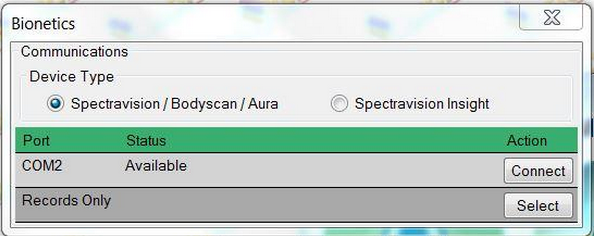 Answer: This usually occurs because windows has stopped communicating to the USB to Serial converter. Very often these simple steps below will remedy the problem:
1 First double check ALL connections are secure including the power cord and serial to USB connector in the back of your unit. This is the most common problem!
2 Exit the Bionetics software completely
3 Turn the SpectraVision or BodyScan off.
4 Unplug the USB dongle/converter from your computer for approximately 20 seconds.
5 Reinsert the USB dongle/converter back into the computer's USB port.
6 Power on your SpectraVision or Bodyscan.
7 Open the Bionetics software. Most of the time the software will recognize the port and will not bring back up the communications window. You can tell if you are communicating by looking at the top left of your bionetics screen it will read “active data com #”. (# being the selected com port your computer assigned)
8 Click on “Connect” if it did not automatically connect.
*If the steps above do not work you will want to reboot the computer and try these steps again. And always make sure your system is turned on before opening the Bionetics software. Occasionally the computer needs a full rebooting of the system for reconnection.
Follow-up answers:
Make sure that you have connections to the USB port through the right cable and USB converter. (only the right one will work). Close all program windows except for the MAIN MENU. If no com port option shows in the Select a Port be sure that you are out of the RECORDS ONLY mode. If you don't see any COMM port available you will need to turn off the laptop and the SpectraVision. Then turn the Spectravision back on and then restart the laptop, you should then see the comm available option.
If there was actually a com3 or other number that showed in the dropdown box, but it still didn't see it, then for some reason there is a "cycle' that wasn't fully allowed to complete in the establishing datacom process. You will have to exit to the main window and try it there once more. Be sure to close down any other open windows in the program. If it still can't establish data com, then the best choice is to recycle the software by closing it out completely and re-starting it.
Comments
0 comments
Please sign in to leave a comment.